 Memory Rolls
No Account Photo Sharing: How to Collect Event Photos
Share and collect event photos without accounts or app downloads: compare links, email and QR codes, plus privacy checks and what each method costs.
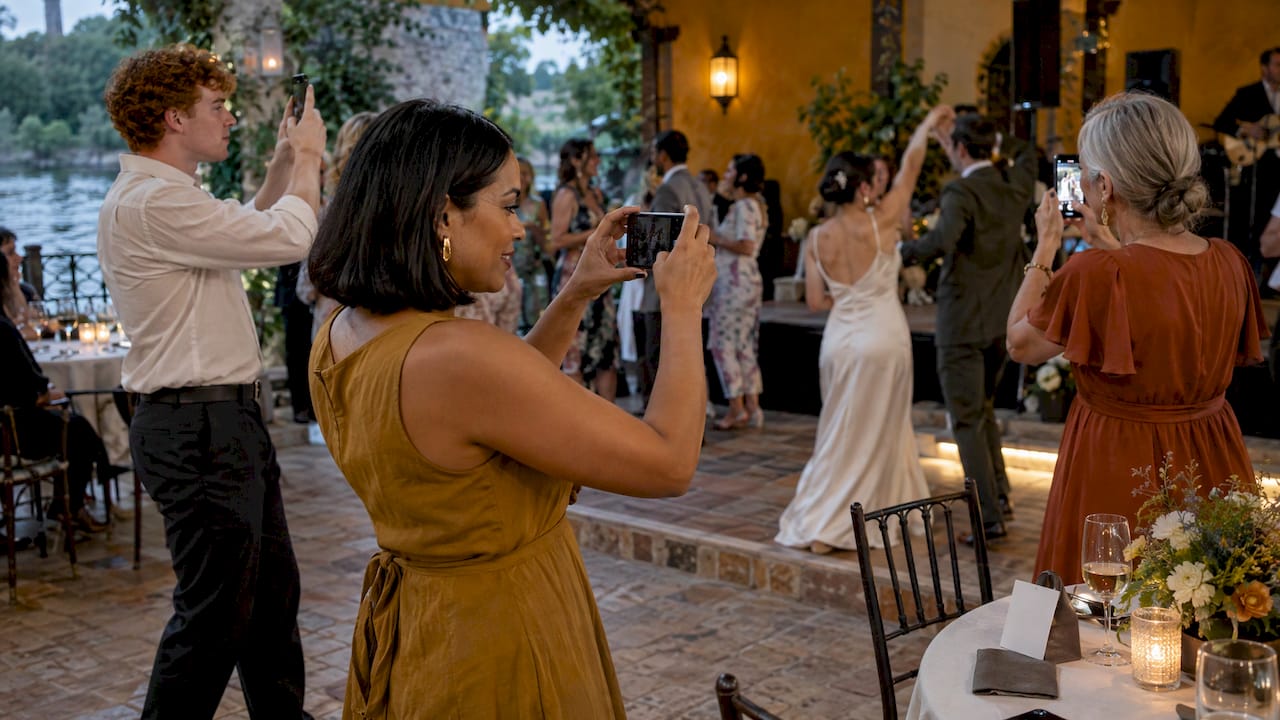
The simplest way to share photos without accounts is a QR code. Guests scan it with their phone camera and shoot or upload in the browser, with no app, no sign-up and no password. The organizer then gets one album instead of a dozen group-chat threads. Email and download links also work for sending finished photos to a few people. They are weak at the other half of the job, which is collecting photos from many people.
This guide covers both halves: how guests can contribute without an account, and how you can send the results to people who have none. It also covers the privacy settings to check before the first photo is taken.
TL;DR
- Collecting photos from guests with no account is easiest through a QR code that opens a camera or upload page in the phone's browser.
- Email attachments break down fast: size limits mean roughly 15 to 20 photos at most, and full-resolution batches are better sent as a download link.
- A link that anyone can open is convenient but public by design, so decide who gets it and how long it stays alive.
- Event Camera by Memoryrolls needs no app or account for guests. The first 5 seats are free, and paid seats start at $1 each, with no subscription.
- Before the event, settle four things: who can add photos, who can view, who can download, and when the album expires.
Table of Contents
- Two different problems hiding in one search
- How guests can add photos without an account or app
- Sharing finished photos without an account
- How to set up a shared collection that guests open from their phones
- What to check about privacy and access
- What this costs with Event Camera
- A perspective from the team
- Try it for your next event
- Choosing by situation
- FAQ
- Sources
Two different problems hiding in one search
People who search for "share photos without an account" usually mean one of two things.
The first is sending. You already have the photos and want a grandmother, a client or a coworker to see them without making them sign up for anything. That is a delivery problem.
The second is collecting. You are hosting a wedding, a team off-site or a birthday, and you want photos from everyone who attends. Here the account is the obstacle: every extra step, such as installing an app, confirming an email or remembering a password, loses guests. Most people simply don't bother. That is a participation problem.
The tools that fix one problem rarely fix the other. A cloud-storage link is fine for sending and clumsy for collecting. A QR code is made for collecting. We take both in turn.

How guests can add photos without an account or app
The pattern that works for guests has three parts: a physical or on-screen prompt, a browser page and an organizer-controlled destination.
- A QR code. It sits on table cards, a welcome sign, a slide or a printed program. Phone cameras read it natively, so there is nothing to install.
- A browser page. The code opens a page in the guest's phone browser. The guest shoots photos or uploads them there.
- One shared destination. Every photo lands in the same album, tied to the event rather than to the guest's identity.
Anyone can do this in ten seconds, which is the whole point. If it takes a minute and a password, the table next to the dance floor will never use it.
If you want the longer wedding version of this, our guide to wedding photo sharing without an app walks through the setup. For a casual party, getting photos from everyone without chasing the group chat covers the same ground at a smaller scale.
Why a limited number of shots helps
Unlimited uploads sound generous. In practice, they produce 400 near-identical photos of one cake. A fixed number of shots per guest, like a disposable camera, makes people choose their moments. It also makes the album easier to curate, because the organizer is picking from intentional frames and not from a camera roll dump.
That is the idea behind Event Camera: each guest gets a limited number of photos, taken from their own perspective, and the organizer decides how many shots each person gets.

Sharing finished photos without an account
Sometimes the event is over, or it was never a group event, and you just need to send photos to people. Here is what works and where each option stops.
Email attachments
Email feels like the most account-free option, because everyone has an address. The catch is size. One photo-frame provider's support page notes that its email intake accepts messages up to 25 MB, and that attachments become cumbersome beyond roughly 15 to 20 photos. Modern phone photos are several megabytes each, so a single wedding-dinner batch can blow past that limit quickly.
Email is fine for a handful of pictures. For a whole event, it is the wrong tool.
Download links by email
A better pattern is to email a link instead of the files. One large-file transfer service says its photo transfers allow up to 5 GB free, preserve original files and let recipients download in a browser with no account. That is a good fit for sending a finished set of full-resolution photos to one person or a small group.
The limits are practical. Transfer links usually expire. They deliver a bundle, not a place where people can add their own shots. And whoever has the link has the photos.
Cloud-storage albums with a public link
Most big cloud-storage and phone-maker photo tools let you share an album through a link. Viewing usually needs no account: one guide to this kind of link sharing explains that anyone holding the link can view the album, signed in or not. Some also offer a public web page for an album. Apple's documentation describes a checkbox that creates a public website anyone with the link can view.
Viewing without an account is easy. Contributing is where friction shows up. Adding photos to someone's album typically requires the guest to sign in to the same ecosystem, which is exactly what you were trying to avoid. And a public link has no per-guest limit and no curation step.
Quick comparison
| Method | Guest needs an account? | Good for | Where it stops |
|---|---|---|---|
| Email attachment | No | A few photos to one person | Size caps, roughly 15 to 20 photos |
| Emailed download link | No | A finished full-resolution batch | Links expire; no group contributions |
| Cloud album, public link | Viewing no; adding often yes | Sharing a finished album | Contributing needs sign-in; public by design |
| Group chat | Needs a messaging app | Tiny groups | Photos get compressed and buried |
| QR code camera or upload page | No | Collecting from many guests | Needs the QR code placed at the event |
For a deeper look at the free end of this list, see free event photo sharing: what works and where it stops. If the photos should disappear after a while, temporary photo sharing: options, limits and privacy covers that.
How to set up a shared collection that guests open from their phones
Here is the sequence we recommend for any event, from 12 people to 300.
- Decide the goal. Do you want candid photos from everyone, or only a curated best-of? That decides how many shots each person gets and whether you review before sharing.
- Create the event. Pick the name, set the shot limit and add any branding. Event Camera supports custom branding, which is useful for company events and activations.
- Decide who pays. With Event Camera, the host can cover guests, or each guest can pay their own way. More on pricing below.
- Print or display the QR code. Table cards, a sign by the entrance, a screen, a napkin. Place it where people already pause, not in a corner.
- Say it out loud once. A single sentence from the host or emcee beats ten signs. "Scan the code on your table and take your shots."
- Curate afterward. As organizer, pick the best shots for the shared album so everyone sees the strongest set.
- Download and share. Bulk download the album before it expires, and send guests the link to the curated version.
The curate step is easy to skip and shouldn't be. A shared album of 40 good photos gets opened. One with 900 gets forgotten.
Placement tips that change turnout
- Put the code on the table at the start of the night, not only at the end.
- Use a short line of text with it, such as the number of shots each guest has.
- At a wedding, a cocktail-hour sign works better than a ceremony program insert, since phones are away during the ceremony. Our wedding page shows how couples use it.
- At a conference or off-site, link the code to the session break slides. Our guide to event photo sharing for off-sites and conferences goes into this.
What to check about privacy and access
No account does not have to mean no control. Before the event, settle these four questions.
Who can add photos
If anyone with a link can upload, the link can travel beyond your guest list. A QR code printed on a table card is relatively contained because it is physically at the event. A link pasted into a public social post is not. Keep the QR code on the premises and out of public posts.
Who can view
A public link that anyone can open is convenient, but it is exactly that: public. For a wedding, baby shower or company event, prefer a private album where the organizer decides what appears. In Event Camera, photos are collected into a private album that the organizer curates, so guests don't automatically see every raw shot.
Who can download
Decide whether guests can save originals or only view. For weddings, couples usually want guests to be able to download their favorites. For brand activations, the organizer often wants the files for campaign use. Make that choice before the event so the announcement matches the policy.
How long photos stay
Not every service keeps photos forever, and some free tiers delete them quickly. Event Camera keeps photos for 90 days, so download the full album in that window. Put a reminder in your calendar for week 10.
A note on faces and consent
At corporate events and activations, tell attendees that photos are being collected. A line on the sign next to the QR code does it. If kids are at the event, such as at a family celebration or baby shower, keep the album private and share the link only with the invited group.
What this costs with Event Camera
Event Camera uses per-event pricing based on the number of participants. There are no subscriptions. Here are the published tiers, per seat, one-off:
| Seats | Price |
|---|---|
| 1 to 5 | Free |
| 6 to 25 | $1 per seat |
| 26 to 100 | 40¢ per seat |
| 101 to 250 | 30¢ per seat |
| 251 and up | 20¢ per seat |
Two other options matter for who pays:
- Guest codes: $1 per seat, one-off.
- Guest-paid event seat: $1.99 per person, one-off, for events where each attendee covers their own.
The checkout shows your total before you pay, and the pricing page has the current numbers. That matters, because prices can change.
A host-paid setup suits weddings and company events, where you want zero friction and guests shouldn't see a payment screen. Guest-paid suits clubs, student groups and fitness events, where the organizer prefers not to carry the cost.
A perspective from the team
We built Event Camera around one observation: guests will do almost anything for you at an event if it takes under ten seconds, and almost nothing if it takes a login.
That is why there is no app to download and no account to create. A guest scans a code and takes a limited number of photos and short videos, and that's it. We think the limit is a feature, not a restriction. It brings back what made disposable cameras fun: you think before you shoot, and the best moments come from people who were paying attention.
We also think the organizer should stay in charge. Photos collect into a private album, you curate it, and you decide who pays and how many shots each person gets. Pricing is per event and based on attendance, with no monthly fees, because most people host a handful of events a year, not fifty.
Our aim is simple: everyone at your event contributes their own view, and you end up with one album worth opening.
Uday
Try it for your next event
If you're collecting photos at a wedding, corporate event, brand activation, club night or campus gathering, Event Camera gives every guest a QR-code camera on their own phone, with no app and no account. The first 5 seats are free, so you can run it with a small group before you scale up.

Start on the Event Camera home page, see tiers on the pricing page, or look at use cases for campus groups and brand activations.
Choosing by situation
A short decision guide:
- Sending 10 photos to one relative: email attachments, or an emailed download link.
- Sending a full-resolution batch to a client: a browser download link.
- Collecting photos from 30 or more guests: a QR code camera or upload page, so nobody needs to sign in.
- A private family event: a private album with organizer curation, shared only with the invited group.
- A wedding: the QR approach, plus a curated album afterward. Our comparison of six ways to collect photos from wedding guests lays out the tradeoffs, and building one album from all guest shots shows what to do with the results.
For a baby shower, the private album approach keeps photos with the parents. More ideas live on the Memoryrolls blog.
FAQ
Can guests share photos without creating an account?
Yes. With a QR code, guests open a page in their phone browser and take or upload photos with no sign-up. Event Camera works this way: no app download and no account for attendees. The organizer is the only person who sets anything up.
How can I share event photos by email?
For a few photos, attach them directly, but keep in mind the size caps: about 25 MB for many email systems, which can mean only 15 to 20 photos. For more, email a download link to a full-resolution batch instead. For photos from many guests, collect them in one shared album first and send the link to that.
Is a public link safe for event photos?
A public link lets anyone who holds it view the photos, so treat it like the album itself. Share it only with invited guests and keep it out of public posts. If privacy matters, as at weddings, baby showers or company events, use a private album the organizer curates.
How long do photos stay available?
In Event Camera, photos are kept for 90 days. Use the bulk download feature to save the full album before then. Other services have different retention rules, so check any tool's policy before relying on it as an archive.
Who pays for the photos?
The organizer chooses. Hosts can pay per seat, starting free for the first 5 and then $1 per seat for seats 6 to 25, with lower per-seat rates as attendance grows. Alternatively, guests pay $1.99 each in a guest-paid event. There is no subscription.
Sources
- How to Send Photos to the Frame Using a Frame Email Address (PhotoSpring support)
- Send full-resolution photos by email or link (TransferNow)
- Google Photos Link Sharing Permissions and Settings Explained (Guiding Tech)
- Share photo albums using iCloud for Windows (Apple Support)