 Memory Rolls
QR Code Photo Sharing: How to Set It Up for Any Event
Learn how QR code photo sharing works, three ways to set it up, what to check on privacy and access, and what it costs to collect every guest's photos.
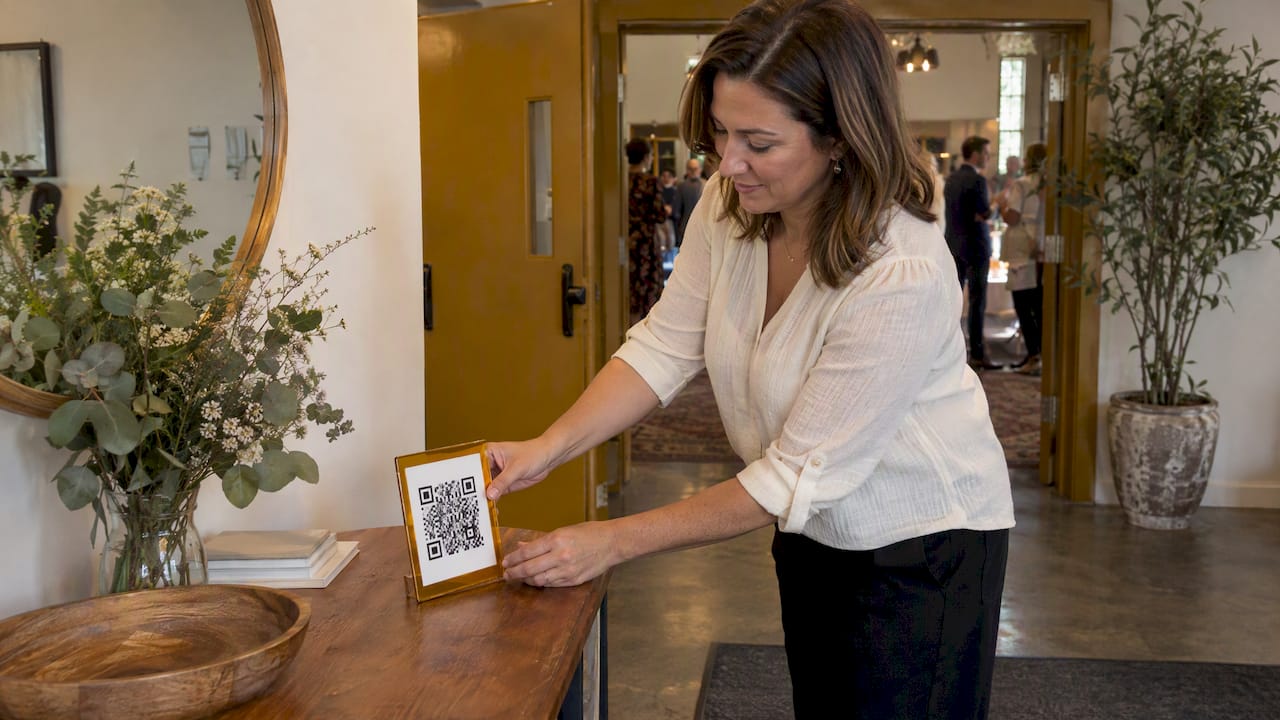
QR code photo sharing means you put one code on a sign, table card or screen. Guests scan it with their phone camera, and their photos land in one shared album. You can build that yourself from a cloud album and a free code generator, or use a purpose-built event camera that needs no app and no account. The right choice depends on how many guests you have, how much control you want over the final album, and how much setup you will tolerate the week of your event.
This guide covers how the process works, the three realistic ways to do it, what to check before you print a code, and what it costs.
TL;DR
- A QR code is only a doorway. The photos live in an album or gallery, so what matters is where that album sits and who can open it.
- The DIY route (a cloud album plus a code generator) is free, but guests often need to sign in or install something, and you get no curation.
- A dedicated event camera tool removes the app and account step, can limit shots per guest, and lets the organizer pick the best photos to share.
- Before printing, test the code on an iPhone and an Android phone, check the link, and decide who can view, add and download.
- Memoryrolls is free for the first five guests, then priced per seat, with no subscription.
Table of Contents
- How QR code photo sharing works
- Three ways to set up a QR code for photo uploads
- Which option fits your event
- QR code photo albums and galleries: view versus contribute
- Check these before you print the code
- Where to put the code so people actually use it
- Perspective: why the app-free, limited-shot approach wins
- What QR code photo sharing costs
- Match the setup to the occasion
- Try Event Camera for your next event
- FAQ
- Sources
How QR code photo sharing works
There are three moving parts: the album, the link to it, and the code that encodes the link.
- The album. A place where photos are stored: a cloud folder, a shared album in your phone's photo app, or an event platform's gallery.
- The link. Every album has a web address. Some links let people only view. Others let them add photos too.
- The code. A QR code generator turns that address into a square pattern. Nothing is stored inside the pattern except the address.
That last point matters. If you change or delete the album, the printed code leads nowhere. If someone swaps your code for another one, guests land on the wrong site. Both problems are avoidable, and we cover them below.
On the guest side, scanning is simple. On an iPhone or iPad, Apple's instructions say to open the Camera or Code Scanner, point it at the code, and tap the link that appears. Most recent Android phones also read codes from the default camera app, though the exact steps vary by model.
Three ways to set up a QR code for photo uploads
Option 1: A shared cloud album plus a free generator
This is the lowest-cost route. You create a shared album or upload folder in a service you already use, such as Google Photos, iCloud Shared Albums or Dropbox, copy its share link, and paste the link into a QR code generator. One guide to wedding photo QR codes describes exactly these three options.
The steps are short:
- Create the album or folder and name it for the event.
- Turn on link sharing and make sure it allows contributions, not just viewing.
- Copy the link and generate a code from it.
- Download the code as a high-resolution image and print it.
- Scan it yourself from a few feet away, on more than one phone.
The tradeoffs show up on the day. Some albums ask guests to sign in with a particular account, which stops older relatives and anyone on a different phone platform. Guests also see everything, including blurry shots and photos taken at the wrong moment, and there is no way to hold back the weak ones before the album is shared. If your group is small and everyone uses the same kind of phone, this is a perfectly good option.
Option 2: A generator with built-in upload pages
Some code generators host a simple upload page for you. They sit between the first and third options: guests tap through to a page and send files without an account. Check three things before you commit: how long the page stays live, whether the photos are stored in original quality, and whether the code stops working if a free trial lapses. A printed code that dies after a trial ends is the worst outcome for a wedding or conference.
Option 3: A dedicated event camera
This is where we work. With Memoryrolls Event Camera, guests scan a code and get a disposable camera in their phone browser. They take a limited number of photos and short videos from their own perspective. There is no app to download and no account to create. Every shot goes into one private album, and the organizer chooses which ones become the shared album for everyone.
The shot limit changes behavior in a useful way. People put the phone down and look up. You get fewer near-duplicates and more of the moments they chose, which is the same reason people loved film disposable cameras at tables.
Which option fits your event
| Cloud album + generator | Generator with upload page | Dedicated event camera | |
|---|---|---|---|
| Guest needs an app or account | Often yes, or a sign-in | Usually no | No |
| Limit on shots per guest | No | Rarely | Yes, set by the organizer |
| Organizer picks the best photos | No, everything is visible | Sometimes | Yes, curated album |
| Branding | Little or none | Limited | Custom branding available |
| Cost | Free | Free or paid | Free for the first five guests, then per seat |
| Best for | Small, same-phone groups | Casual parties | Weddings, corporate events, activations |
QR code photo albums and galleries: view versus contribute
People search for "photo album" and "gallery" as if they were the same thing, but they answer different needs. Decide up front which of these you want:
- Contribute only. Guests send photos in but cannot browse. Good when you want a surprise reveal or a tighter privacy posture.
- Contribute and view. Guests see the whole pool as it grows. Fun at a party, but it exposes every photo to every guest.
- View only, after curation. The organizer selects the best shots and shares a finished gallery. This is how we recommend most events work.
The third pattern gives you a clean separation: a private pool to collect from, then a curated album to share. If you plan to print a second code later, for example on a thank-you card, point it at the finished gallery, not the upload page. Our guide to the QR code photo album approach goes deeper on that split, and the piece on making one album from everyone's wedding shots walks through the curation step.
Check these before you print the code
A QR code looks harmless, but it deserves five minutes of checking.
Verify the destination
The FTC warns that malicious QR codes can lead to spoofed sites or malware, and recommends inspecting the URL for misspellings or switched letters before opening it. For your event, that means two habits. First, scan your own code and read the address that appears. Second, put the code somewhere you can watch, since a sticker pasted over a legitimate code is the classic trick. CISA's mobile communications guidance also recommends avoiding codes from unknown sources and verifying invitations through a separate channel. A short line on your invitation or website that tells guests what the code does makes the real one easier to trust.
Decide who can see what
Read the platform's sharing settings. Is the album listed anywhere public? Can anyone with the link add or download? Can you remove a photo after the fact? For corporate events and anything involving clients, these answers belong in your planning notes.
Get permission and set expectations
The FTC advises getting permission before posting photos or videos of people, and notes that screenshots or recordings can preserve content even after it is deleted or expires. In practice, tell guests on the sign that photos go into a shared album, and don't promise that a deletion removes every copy. For events with children, or a workplace where people may not want to be pictured, say so ahead of time and give people an easy way to opt out.
Learn the storage and download rules
Every option has a retention window. Cloud albums may stay indefinitely but are tied to an account. Event platforms often keep photos for a fixed period. With Memoryrolls, photos are kept for 90 days and you can bulk download them, so download your album and save a copy somewhere you control before that window closes.
Test on real phones
Scan the printed code from the distance guests will be standing. Try an iPhone and an Android phone, on Wi-Fi and on cellular, since venue Wi-Fi can be slow or blocked. Make the printed code at least about an inch and a half square for a card and larger for a sign, and keep a quiet white margin around it.
Where to put the code so people actually use it
Participation is mostly a signage problem. A few placements that work:
- Table cards or table numbers, so the code is in reach while people sit.
- Entrance or welcome sign with one sentence about what to do.
- The program or menu, which people already hold.
- A screen or slideshow between sessions at a conference.
- The bar or lounge area, where phones come out.
Good sign copy says what the guest gets to do and how little effort it takes: scan, take a few photos, done. For wording ideas, see our wedding QR code sign guide. If you want more ways to put guests' phones to use during the evening, a few couch party games for hosts show how phone-based activities can sit alongside a photo code without competing with it.
Perspective: why the app-free, limited-shot approach wins
We built Event Camera around one belief: the best event album is made by many people, but only a few of them will ever install something to contribute. Every extra step, an app store visit, a sign-up form, a password, loses guests, and the guests you lose first are usually the ones whose photos you would most like to have: grandparents, the friend who is always behind the camera telling everyone else to smile.

That is why guests on Memoryrolls scan and shoot. There is nothing to download and nothing to register. The second belief is about restraint. A pool of 3,000 uncurated photos is a chore, not a keepsake. A limited number of shots per guest nudges people to choose their moments, and the organizer's curation step turns a pool into an album people open again.
We also think payment should match how events actually work. Some hosts want to cover everyone. Others, such as clubs or group trips, want guests to pay for their own camera. Both should be possible without a subscription, because an event happens once.
— Uday
What QR code photo sharing costs
The DIY route costs nothing but time. A dedicated tool costs money, so here is how Memoryrolls prices it, as published on our pricing page. It is a one-off charge per seat for each event, not a monthly fee.
| Seats | Price |
|---|---|
| First 5 guests | Free |
| 6–25 | $1 per seat |
| 26–100 | 40¢ per seat |
| 101–250 | 30¢ per seat |
| 251 and up | 20¢ per seat |
| Guest codes | $1 per seat |
| Guest-paid event seat | $1.99 per person |
The per-seat rate falls as your guest count grows, so a large conference pays far less per person than a small dinner. If you would rather not pay for guests at all, the guest-paid option lets each person cover their own seat. Check the pricing page for the full rules before you build a budget.
Match the setup to the occasion
Weddings. Couples get a view of the day from every table, not only the photographer's frame. Our wedding camera checklist covers timing, signs and the day-of test, and the no-app explainer covers why guests stay on board. See also our wedding use page.
Conferences and off-sites. Attendees move between rooms, so one album beats ten group chats. Branding on the camera keeps the experience on-message. Read about conference photo sharing or go straight to our corporate events page.
Brand activations. A custom-branded camera turns attendees into content creators, with your look on the experience. See brand activations.
Bars, clubs and campus groups. Shorter, louder events where guest-paid seats make sense. Details are on the venues page and the campus groups page.
If your event is small and casual, you might wonder whether you need any of this. Compare it with a booth too: our photo booth alternatives and six ways to collect wedding photos lay out the options side by side.

Try Event Camera for your next event
If you want guests to scan, shoot and be done, set up an event on Memoryrolls Event Camera. The first five guests are free, so you can run a real test with your own phones before you commit. You choose who pays, how many shots each guest gets and how the album is branded, and you pick the final photos everyone sees.
FAQ
Can I create a QR code that lets guests share photos?
Yes. Create an album or upload page, copy its link, and turn that link into a QR code. Guests scan it with their phone camera and add photos. A dedicated event tool does this in one step and can also limit shots and curate the results.
Can guests share photos without downloading an app or creating an account?
Yes, if the tool is built for it. Guests open the code in their phone's browser and upload or shoot right there. Cloud photo albums are more likely to require a sign-in, so test with a phone that is not logged in to anything.
How do guests scan the code?
On an iPhone or iPad they open the Camera or Code Scanner, point it at the code and tap the link that appears, per Apple Support. Most recent Android phones can do the same from the camera app. Put a short line of instructions on the sign for anyone unsure.
How long do the photos stay available?
It depends on the tool. With Memoryrolls, photos are kept for 90 days and you can bulk download them. Save your own copy so the album doesn't depend on any one service.
Is a QR code safe to use at an event?
It is as safe as the destination and the placement. Scan your own code and check the address, and keep the code where you can see it so no one covers it with another. The FTC advises checking the URL for misspellings before opening a link from a code.
Sources
- Scan a QR code with your iPhone or iPad, Apple Support
- Scammers hide harmful links in QR codes, FTC
- Heads Up: Stop. Think. Connect, FTC
- Mobile Communications Best Practice Guidance, CISA
- QR Code for Wedding Photos: Free Guest Album